How to Generate a UAN Number: Complete Online Process
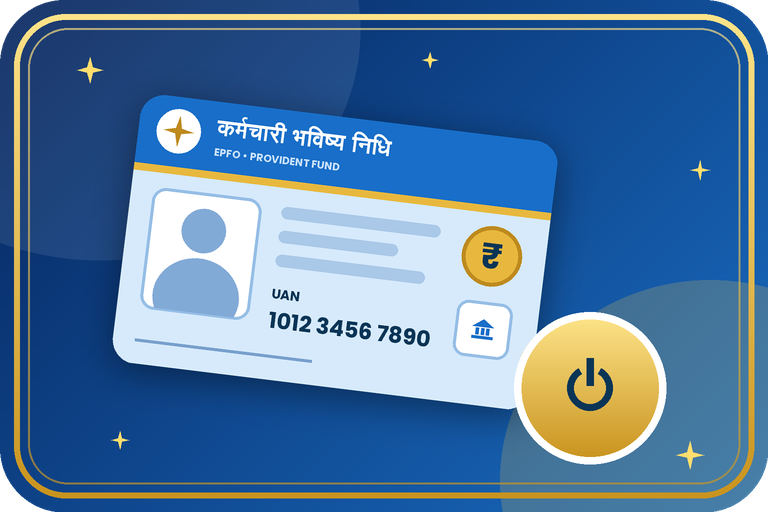
The Universal Account Number (UAN) is a 12-digit number that EPFO gives to every PF member. It stays the same for your whole working life, even if you change jobs. Since 1 August 2025, a UAN is generated and activated through the UMANG app using Aadhaar face authentication, with no need to wait for your employer. This guide explains the process step by step.
Key Points
- The UAN is one permanent number. Each new employer only gives you a new Member ID under the same UAN.
- Generation is free of charge. Do not pay any agent for it.
- You need an Aadhaar number with a mobile number linked to it.
- Two apps are required: UMANG and Aadhaar Face RD.
- The UAN is activated at the same time, so you can use EPFO services immediately.
- You can download your UAN card from the app after generation.
What You Need Before You Start
- An Android or iPhone with a working front camera and internet connection.
- Aadhaar number and the mobile number linked to Aadhaar (for the OTP).
- Good light and a plain background for the face scan.
- The UMANG app and the Aadhaar Face RD app installed from your official app store.
Step-by-Step Process to Generate a UAN
- Install the UMANG app and the Aadhaar Face RD app, and register in UMANG with your mobile number.
- Open UMANG, search for EPFO and go to "UAN Services through Face Auth", then select "UAN Allotment and Activation".
- Enter your Aadhaar number and the captcha, and give consent.
- Enter the OTP received on your Aadhaar-linked mobile number.
- The Aadhaar Face RD app opens. Complete the live face scan as shown on screen.
- After successful verification, your details are filled in from Aadhaar. Check them and submit.
- Your UAN is generated and activated. Note it down and download the UAN card from the app.
Already Have a UAN but It Is Not Active?
- In UMANG, go to EPFO and choose "UAN Activation" under the Face Auth services.
- Enter your UAN, Aadhaar number and the Aadhaar-linked mobile OTP, then complete the face scan.
- After activation, set your password using "Forgot Password" on the Member Portal and log in.
- Forgot your UAN? Use the "Know Your UAN" option on the EPFO Member Portal, or check your salary slip or ask your employer.
After Getting Your UAN
- Give the UAN to your employer so that PF is deposited in your account.
- Complete KYC (Aadhaar, PAN and bank account) on the Member Portal. This is needed for withdrawals and transfers.
- Add a nominee in the "e-Nomination" section.
- Check your PF passbook regularly to see that the contributions arrive on time.
- Rules and app screens can change. If an option looks different, follow the on-screen instructions or call the EPFO helpline.
Need Help?
If the face scan fails, your Aadhaar mobile is not linked, or you need help with UAN activation, KYC or nomination, contact Emitrawala.com. Our team will be happy to help you.
Contact on WhatsApp Call: +91 94606 26065UAN नंबर कैसे बनाएं: पूरी ऑनलाइन प्रक्रिया
यूनिवर्सल अकाउंट नंबर (UAN) 12 अंकों का नंबर है जो EPFO हर PF सदस्य को देता है। नौकरी बदलने पर भी यह पूरे कामकाजी जीवन में वही रहता है। 1 अगस्त 2025 से UAN UMANG ऐप में आधार फेस ऑथेंटिकेशन के जरिए बनता और एक्टिवेट होता है, इसके लिए नियोक्ता का इंतजार नहीं करना पड़ता। इस गाइड में पूरी प्रक्रिया चरण दर चरण बताई गई है।
मुख्य बातें
- UAN एक स्थायी नंबर है। नया नियोक्ता उसी UAN के तहत केवल नई Member ID देता है।
- UAN बनाना निःशुल्क है। इसके लिए किसी एजेंट को पैसे न दें।
- आपके पास आधार नंबर और उससे जुड़ा मोबाइल नंबर होना चाहिए।
- दो ऐप चाहिए: UMANG और Aadhaar Face RD।
- UAN उसी समय एक्टिवेट भी हो जाता है, इसलिए EPFO सेवाएं तुरंत इस्तेमाल कर सकते हैं।
- UAN बनने के बाद ऐप से UAN कार्ड डाउनलोड कर सकते हैं।
शुरू करने से पहले क्या चाहिए
- चालू फ्रंट कैमरा और इंटरनेट वाला Android या iPhone।
- आधार नंबर और आधार से जुड़ा मोबाइल नंबर (OTP के लिए)।
- फेस स्कैन के लिए अच्छी रोशनी और सादी पृष्ठभूमि।
- आधिकारिक ऐप स्टोर से डाउनलोड किए हुए UMANG और Aadhaar Face RD ऐप।
UAN बनाने की चरण-दर-चरण प्रक्रिया
- UMANG ऐप और Aadhaar Face RD ऐप इंस्टॉल करें और UMANG में अपने मोबाइल नंबर से रजिस्टर करें।
- UMANG खोलकर EPFO सर्च करें, "UAN Services through Face Auth" में जाएं और "UAN Allotment and Activation" चुनें।
- अपना आधार नंबर और कैप्चा भरें और सहमति दें।
- आधार से जुड़े मोबाइल पर आया OTP डालें।
- Aadhaar Face RD ऐप खुलेगा। स्क्रीन पर बताए अनुसार लाइव फेस स्कैन पूरा करें।
- सत्यापन सफल होने पर आपकी जानकारी आधार से अपने आप भर जाएगी। जांचकर सबमिट करें।
- आपका UAN बन जाएगा और एक्टिवेट हो जाएगा। उसे नोट करें और ऐप से UAN कार्ड डाउनलोड करें।
UAN पहले से है पर एक्टिव नहीं है?
- UMANG में EPFO खोलें और फेस ऑथ सेवाओं में "UAN Activation" चुनें।
- अपना UAN, आधार नंबर और आधार से जुड़े मोबाइल का OTP डालें, फिर फेस स्कैन करें।
- एक्टिवेशन के बाद मेंबर पोर्टल पर "Forgot Password" से पासवर्ड बनाकर लॉगिन करें।
- UAN भूल गए? EPFO मेंबर पोर्टल पर "Know Your UAN" विकल्प इस्तेमाल करें, या सैलरी स्लिप देखें, या नियोक्ता से पूछें।
UAN मिलने के बाद क्या करें
- अपना UAN नियोक्ता को दें ताकि PF आपके खाते में जमा हो।
- मेंबर पोर्टल पर KYC (आधार, पैन और बैंक खाता) पूरा करें। निकासी और ट्रांसफर के लिए यह जरूरी है।
- "e-Nomination" में नॉमिनी जोड़ें।
- PF पासबुक समय-समय पर देखें कि अंशदान समय पर आ रहा है या नहीं।
- नियम और ऐप की स्क्रीन बदल सकती हैं। कोई विकल्प अलग दिखे तो स्क्रीन पर दिए निर्देश मानें या EPFO हेल्पलाइन पर कॉल करें।
मदद चाहिए?
फेस स्कैन फेल हो रहा हो, आधार से मोबाइल लिंक न हो, या UAN एक्टिवेशन, KYC या नॉमिनेशन में मदद चाहिए तो Emitrawala.com से संपर्क करें। हमारी टीम आपकी मदद करेगी।
WhatsApp पर संपर्क करें कॉल करें: +91 94606 26065